Beta

This is a new service and pages are being tested and improved.

Overview

The details component reveals additional information when users choose to expand it using a clickable HTML ‘Details’ element with an icon.

It keeps pages uncluttered by hiding optional content until users choose to view it.

Use it for short, helpful information that supports someone’s main task, but isn’t essential for all users.

Example

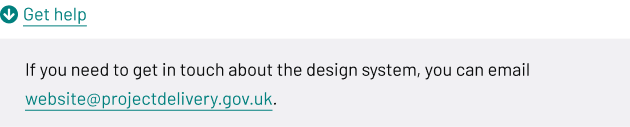
A collapsible details component with a heading that reads ‘Get help’ next to a downward arrow. When expanded, it shows text: ‘If you need to get in touch about the design system, you can email website@projectdelivery.gov.uk,’ with the email address as a link.

When to use

Use the details component when you need to:

  • explain technical terms or jargon that experienced users know but newcomers might not
  • provide examples that clarify instructions
  • offer background context that helps some users
  • include short definitions or explanations
  • give optional clarifications about processes or requirements
  • show calculation methods or criteria without cluttering the main content
  • offer a way for users to get in touch on forms or services

When not to use

Avoid the details component when:

  • information is essential for completing the task
  • content is longer than a paragraph
  • information affects compliance or decision-making
  • you have multiple related sections to hide
  • most users need the information
  • content includes interactive elements

For lengthy explanations or step-by-step guidance, link to a separate page instead.

Content notes

Write summary text that clearly describes what users will find. It should:

  • use questions when appropriate
  • be under 10 words
  • avoid generic phrases

Structure the expanded content clearly, by:

  • starting with the most important information
  • include specific examples where helpful
  • keeping it to one main point per details component

Limit expanded content to 3-4 sentences maximum to maintain scannability for screen reader users.

Variations

Updates

All pages use the details component to show any updates made to the page.

The summary text should always say ‘Updates’.

Use the date of the update as header text in the expanded panel. The date should be formatted as 1 January 2026. List most recent updates first.

For the paragraph text under the date, write a brief explanation about what’s changed.

Focus on user impact, not internal processes.

Avoid:

  • “Various updates made”
  • “Updated following internal review”
  • “Minor changes”

Include more detail when the update:

  • affect how users complete tasks
  • introduces new requirements or processes
  • changes deadlines or dates
  • means users need more context to understand the impact of any changes
Back to top